Learn Blender with AI
Blender is free, wildly powerful, and famously difficult to learn. Talk To Your Computer watches your viewport and answers questions about whatever you are stuck on.
Why Blender Has a Steep Learning Curve
Blender's interface is context-sensitive to a degree that no other creative tool attempts. The same keyboard shortcut does different things depending on whether you are in Object Mode, Edit Mode, Sculpt Mode, Weight Paint Mode, or any of the other modes. Pressing G moves an object in Object Mode but moves individual vertices in Edit Mode. Pressing X deletes in some contexts and constrains to an axis in others. There is no consistent mapping of keys to actions, and this is by design.
Then there is the modifier stack. Modifiers are non-destructive operations that stack on top of each other, and the order they are in changes the result. A Subdivision Surface above a Mirror modifier produces different geometry than the reverse. Applying a modifier bakes it permanently. Not applying it means you are working on geometry that does not visually match what the modifier shows you. The mental model is powerful once you have it, but getting there is a process of confusing failures.
Materials, rendering engines (Cycles vs EEVEE vs the new EEVEE Next), UV unwrapping, rigging, physics simulations — each is essentially a sub-application with its own learning curve. And Blender's documentation, while excellent, cannot tell you what went wrong with the specific mesh you are looking at right now.
How Talk To Your Computer Changes This
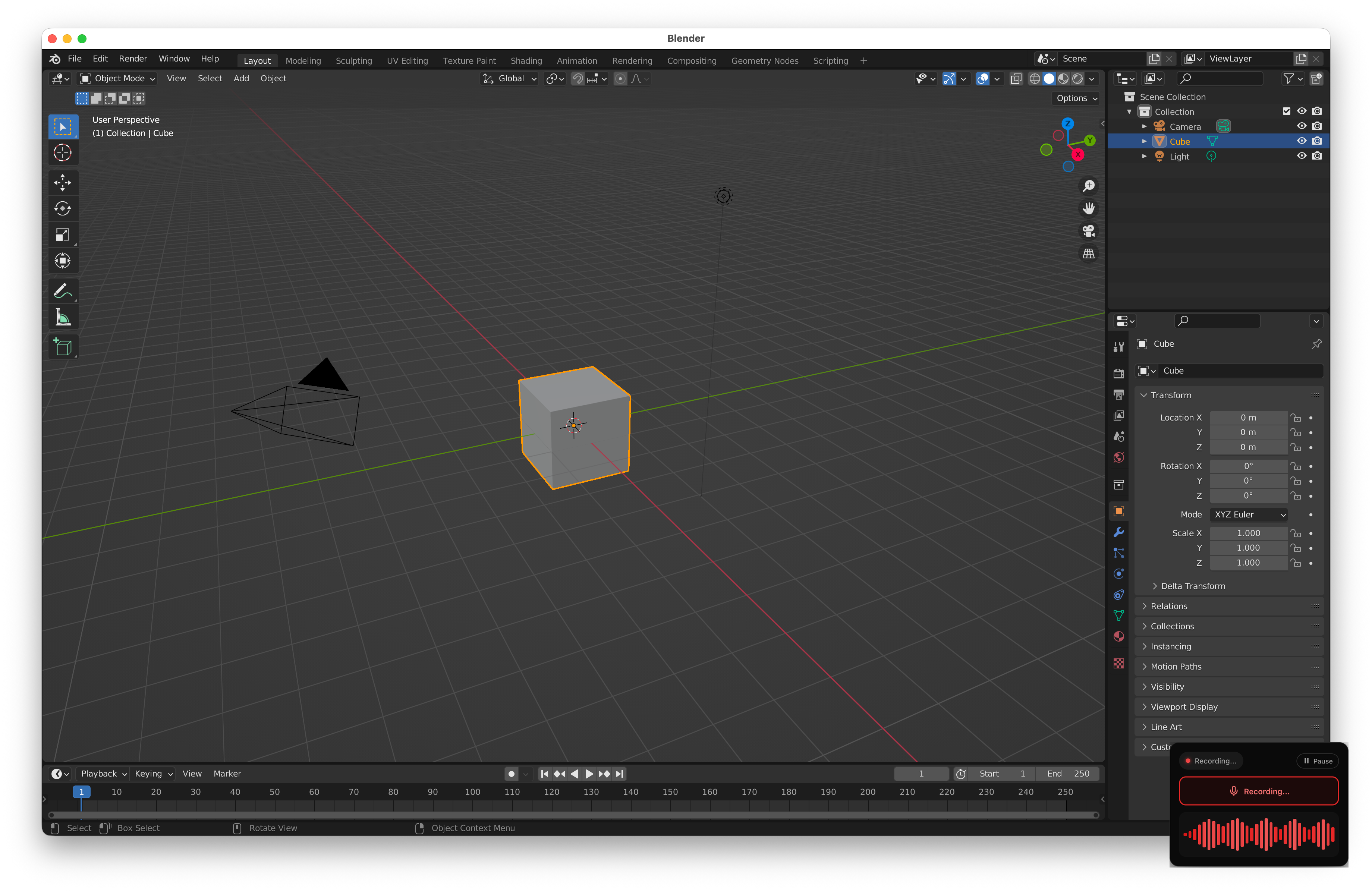
Share your screen, open Blender, and ask. When you say "I accidentally entered sculpt mode and I cannot get back", Talk To Your Computer can see your mode dropdown and tell you exactly how to switch back. When your material is showing in the viewport but not in the render, it can look at your material nodes and spot the issue.
Blender problems are almost always visual — something looks wrong on screen and you do not know why. That is exactly the kind of problem a screen-aware AI assistant is built for. You show it what you see, you describe what you expected, and it bridges the gap.
What You Can Ask
Modes and Why Blender Feels Inconsistent at First
Object Mode, Edit Mode, Sculpt Mode, Vertex Paint, Weight Paint, Texture Paint, Pose Mode — Blender has more modes than most applications have tools. Each mode changes what your mouse does, what your keyboard shortcuts do, and what panels are visible. The learning curve is not one curve; it is a separate curve per mode.
The fastest way through this is to ask as you go. "I am trying to select individual faces but I can only select whole objects" is a common question with a simple answer — you are in Object Mode and need to switch to Edit Mode and enable Face select. But if you do not know the vocabulary, you cannot Google it effectively. Saying it out loud while your screen is shared just works.
The Modifier Stack Is Not as Scary as It Looks
Modifiers are Blender's way of letting you do complex operations without permanently changing your mesh. A Subdivision Surface modifier smooths your geometry. A Boolean modifier cuts one shape out of another. An Array modifier duplicates your object in a pattern. They stack, and the order they are in matters — the top modifier is processed first.
The confusion comes when you need to decide whether to apply a modifier or leave it live. Applying bakes the result into your mesh permanently. Leaving it live keeps your original geometry editable but means what you see in the viewport is not what you are actually editing. When you are stuck, ask: "should I apply this mirror modifier before I start adding detail?" and get guidance specific to your workflow.
Rendering Your First Scene Without Waiting 3 Hours
Blender ships with two render engines: Cycles (physically accurate, slow) and EEVEE (real-time, fast, some visual compromises). Beginners often render with Cycles at full resolution on a CPU without realizing that switching to GPU rendering or dropping the sample count could cut their render time by 90%.
If your render is taking forever, share your screen and ask: "how do I make this render faster without it looking terrible?" Talk To Your Computer can see your render settings, your sample count, whether you have GPU compute enabled, and whether your scene complexity actually requires Cycles or whether EEVEE would give you a visually identical result in a fraction of the time.
Try it free — no install needed
Share your screen. Hold the mic button. Ask anything.
Get Started Free